New Feature Alert! Two-Factor Authentication
Written by Cyndi Arnold
Updated on Aug 04, 2026
New Feature Alert! Two-Factor Authentication
Overview
Wastebits now supports Two-Factor Authentication (2FA) to add an extra layer of security to your account. When enabled, you will be required to verify your identity during sign-in, in addition to your password.
2FA is configured at one of two levels: it is either enabled for the entire portal, applying to all users automatically, or it is left to each individual user to enable on their own account.
1. Accessing Two-Factor Authentication Settings
- Click your name in the top right corner of the application.
- Select Your Account from the dropdown menu.
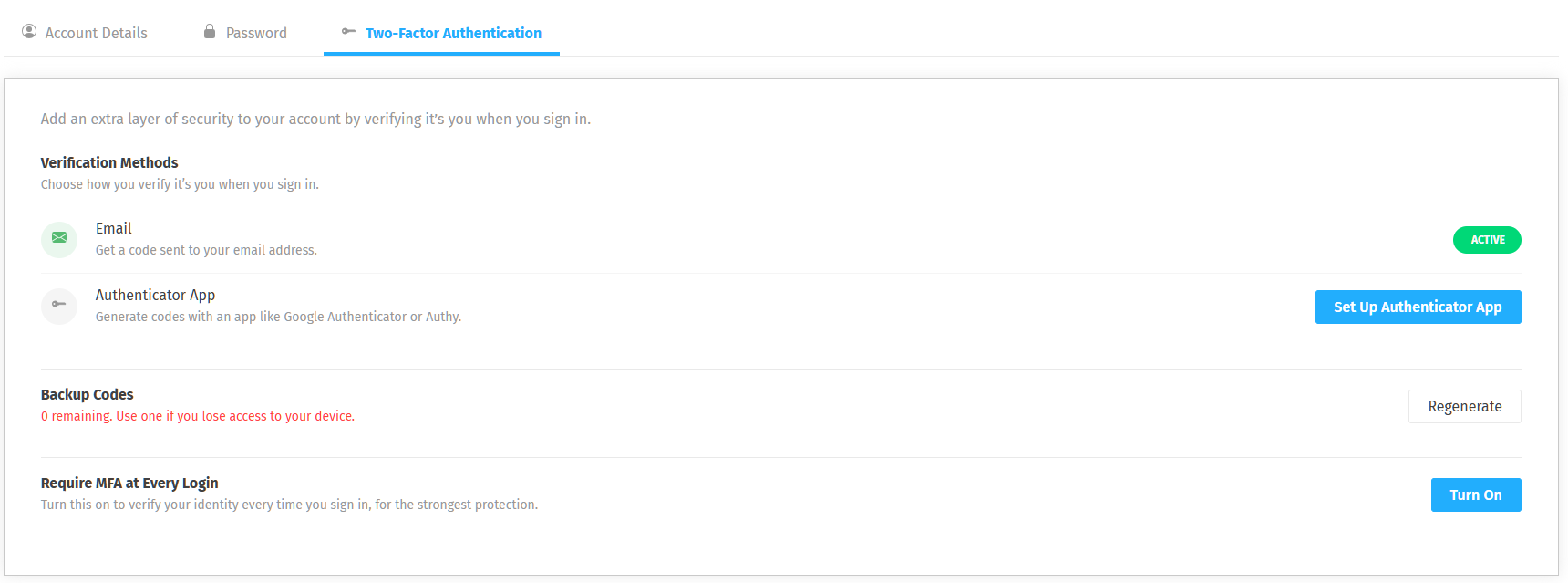
- Navigate to the Two-Factor Authentication tab.
2. Portal-Level Enforcement
When 2FA is required at the portal level, every user in the portal will receive an email notification informing them that two-factor authentication has been enabled for their account.
The email will explain that starting at their next sign-in, they will need to verify their identity with a code sent to their email address. It also includes a Manage MFA Settings button that links directly to their Two-Factor Authentication account settings, where they can switch to an authenticator app if preferred.
Note: If the button in the email is not working, copy and paste the link provided in the email directly into your browser.
Users should complete their 2FA setup promptly to avoid any disruption to their access. By default, email verification will be active, no action is required if email codes are your preferred method.
3. Verification Methods
There are two ways to verify your identity when signing in.
A one-time code is sent to the email address associated with your account. This method is active by default and requires no additional setup.
Authenticator App
Generate verification codes using an app like Google Authenticator or Authy. This method is more secure than email and is recommended for users who want stronger account protection.
To set up an Authenticator App:
- Click Set Up Authenticator App.
- Follow the on-screen instructions to link your authenticator app by scanning the provided QR code.
- Enter the confirmation code from your app to complete setup.
4. Backup Codes
Backup codes allow you to access your account if you lose access to your primary verification method (for example, if you lose your phone).
- A set of backup codes is generated for your account and can be used in place of your normal verification code.
- Click Regenerate to create a new set of backup codes.
- Store your backup codes somewhere safe. Each code can only be used once.
Important: If you see 0 remaining backup codes, click Regenerate to create a new set before you need them.
5. Require MFA at Every Login
For the strongest protection, you can turn on Require MFA at Every Login. When enabled, you will be prompted to verify your identity every time you sign in, without exception.
To enable this on your own account, click Turn On next to the Require MFA at Every Login option.
If MFA has been enabled at the portal level, this setting will display as Enforced and cannot be turned off by individual users. This ensures all users in the portal meet the same security requirement.
6. Who Can Help?
If you have questions about two-factor authentication or account security in Wastebits, contact:
Wastebits Support
help@wastebits.com
(844) 724-0200