New Feature Alert! Portal Announcements
Written by Cyndi Arnold
Updated on Sep 28, 2026
New Feature Alert! Portal Announcements
Overview
Portal Admins can now create Announcements that appear as a banner for users in their portal. Use announcements for release notes, maintenance notices, policy reminders, or other important updates.
Announcements can be sent to everyone in your portal or to a specific audience using role, company, site, or tag rules. Each user sees the banner at the top of every page until they dismiss it.
Note: Only Portal Admins can create and manage announcements.
1. Accessing Announcements
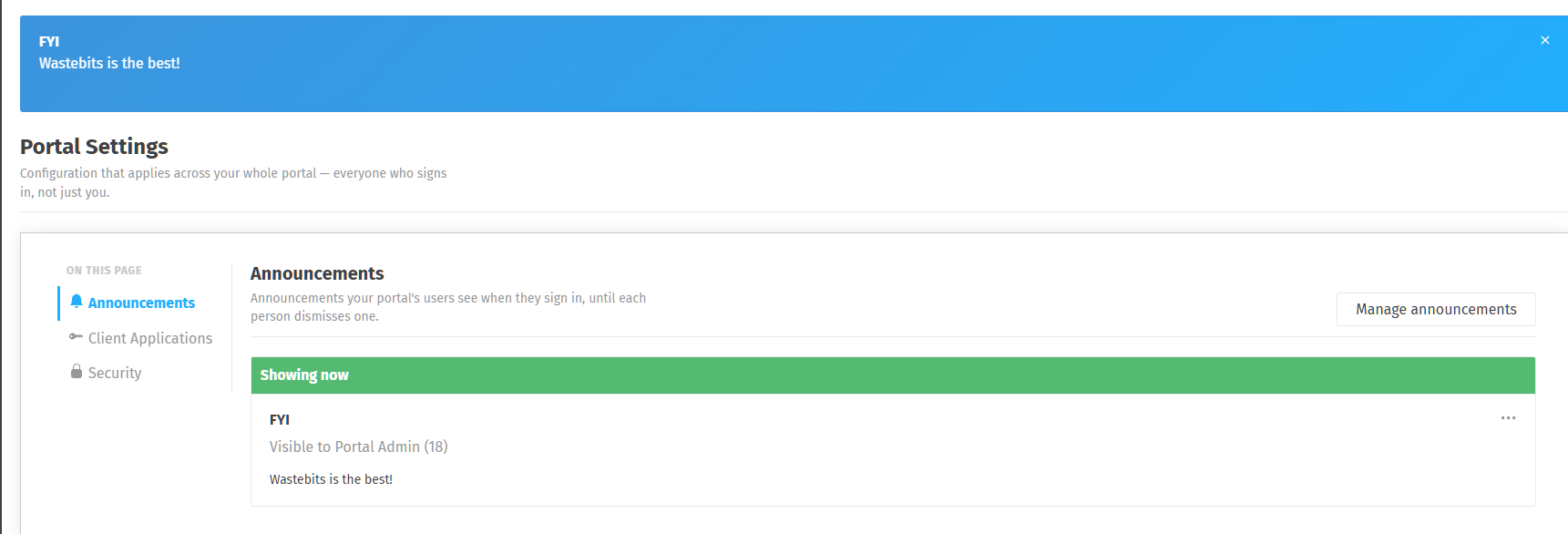
- Click your name in the top right corner of the application.
- Select Portal Settings from the dropdown menu.
- In the Announcements section, click Manage announcements.
The Portal Settings page also has a Showing now panel that lists every announcement currently active in your portal and who can see each one.
2. Creating a New Announcement
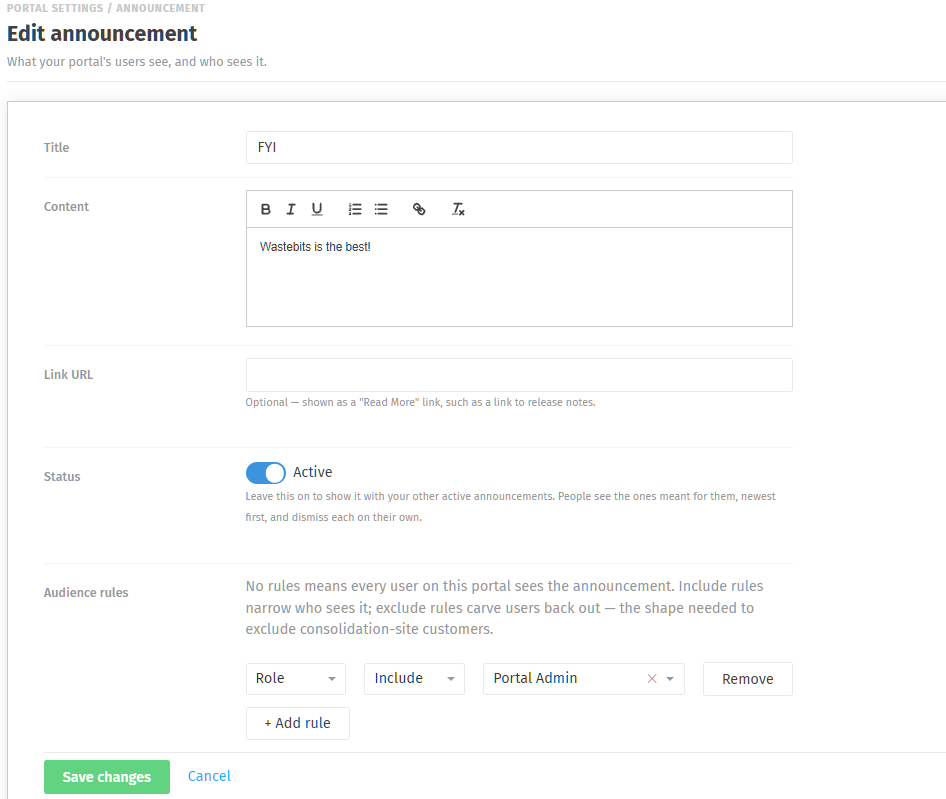
- From the Announcements page, click + New announcement in the top right corner.
- Enter a Title for the announcement.
- Enter the Content you want users to see. The editor lets you use bold, italics, underline, numbered and bulleted lists, and links.
- Optionally, enter a Link URL. It appears as a Read More link on the banner, for example to point users to release notes.
- Set the Status. Leave it on Active to show the announcement immediately.
- Add Audience rules if you want to limit who sees the announcement (see Section 3).
- Click Create announcement to publish it, or Cancel to discard it.
Note: More than one announcement can be active at a time. Users see the announcements meant for them, newest first, and dismiss each one individually.
3. Audience Rules
Audience rules control who sees an announcement. If you add no rules, every user in your portal will see the announcement.
Click + Add rule to create a rule. Each rule has two parts.
Include or Exclude
- Include narrows the audience so that only users who match the rule see the announcement.
- Exclude removes matching users from the audience. For example, you could send an announcement to all customers except those at consolidation sites.
Rule Types
- Role: Users with a specific permission type (e.g., Portal Admin)
- Company: Users belonging to a specific company in your portal
- Site: Users associated with a specific site in your portal
- Tag: Users associated with a specific tag
You can add as many rules as you need. When you use more than one Include rule, a user must match all of them to see the announcement. For example, Role = Portal Admin and Company = Vroom shows the announcement only to Portal Admins at Vroom.
4. Managing Existing Announcements
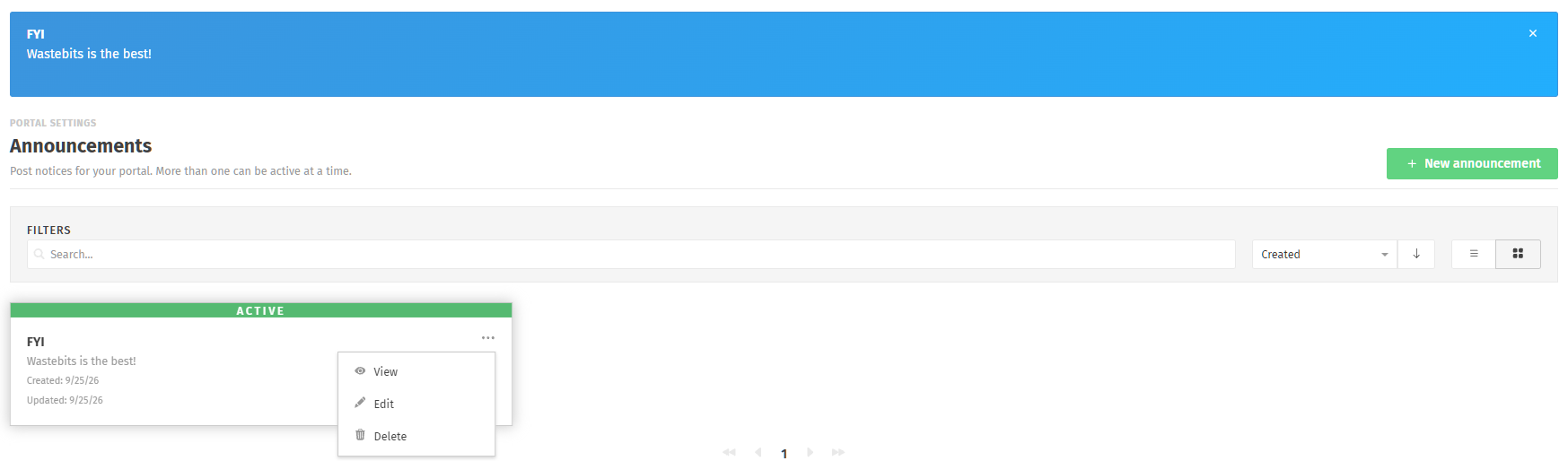
All announcements for your portal are listed on the Announcements page. Use the Search bar and sort options to find a specific one, and switch between list and card views with the icons on the right.
Viewing an Announcement
Click an announcement to open it. The Details tab shows:
- The announcement's status (Active or Inactive)
- The announcement content
- Who created it and when
- The date it was last updated
Editing an Announcement
- Open the announcement.
- Click Edit in the top right corner.
- Make your changes and save.
Note: Editing an announcement does not show it again to users who have already dismissed it. If you need everyone to see an updated message, create a new announcement.
Deleting an Announcement
- Open the announcement.
- Click Actions in the top right corner.
- Select Delete.
To hide an announcement without deleting it, edit it and turn the Status toggle off.
5. Viewing the Audience
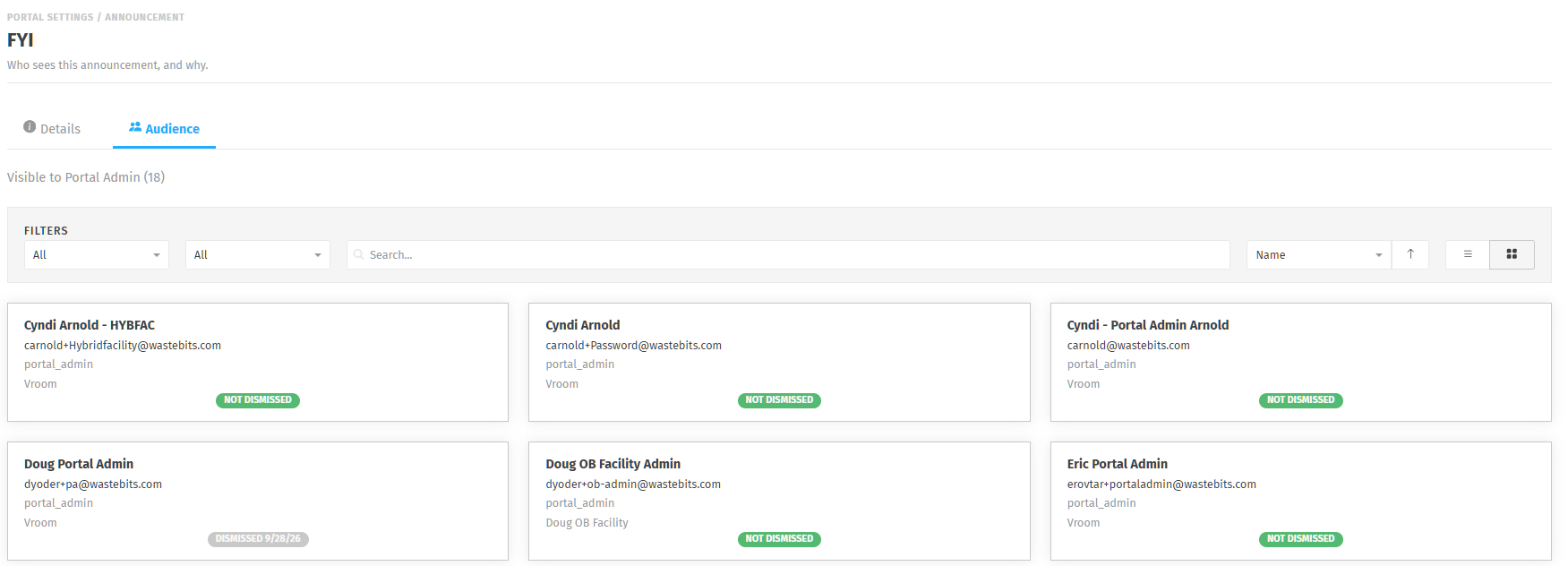
Open an announcement and click the Audience tab to see everyone who receives it. The top of the tab shows who the announcement is visible to and the total number of users.
Each user card shows:
- Name and email address
- Role
- Company
- Dismissal status: Not Dismissed, or Dismissed with the date they closed the banner
Use the filters and search bar to narrow the list, for example to see only users who have not yet dismissed the announcement.
6. Who Can Help?
If you need assistance with Portal Announcements, contact:
Wastebits Support
help@wastebits.com
(844) 724-0200