New Feature Alert! Document Hub
Written by Cyndi Arnold
Updated on Sep 09, 2026
New Feature Alert! Document Hub
Overview
The Document Hub is a centralized location in Wastebits where you can view, search, filter, and manage all documents across your portal, including files attached to Waste Streams, Manifests, Forms, Sites, and Companies, as well as portal-wide shared library documents. Documents can be renamed for easier identification and more effective search filtering, see Document Actions below.
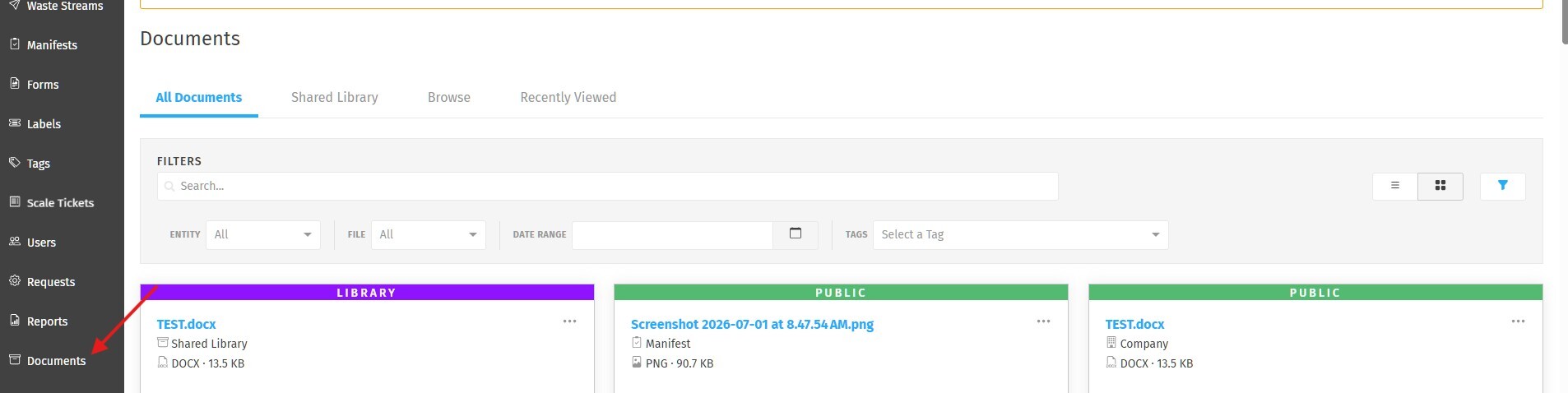
Access the Document Hub by clicking Documents in the left-side navigation menu.
1. Tabs Overview
The Document Hub is organized into four tabs:
- All Documents - A complete view of every document you have permission to see across all entities in your portal
- Shared Library - Portal-wide documents not tied to any specific record (safety manuals, SOPs, contracts, pricing sheets, etc.)
- Browse - Navigate documents using a folder-style tree organized by entity type
Recently Viewed - Quick access to documents you have recently downloaded or viewed source
2. All Documents Tab
The All Documents tab displays every document in your portal in a card grid view. Each document card shows:
- File name and type
- Entity the document is attached to (e.g., Waste Stream, Manifest, Company)
- File size
- Upload date
- Scope badge (Public, Library, Billing, Scan, Private)
- Any tags applied to the document
Searching and Filtering
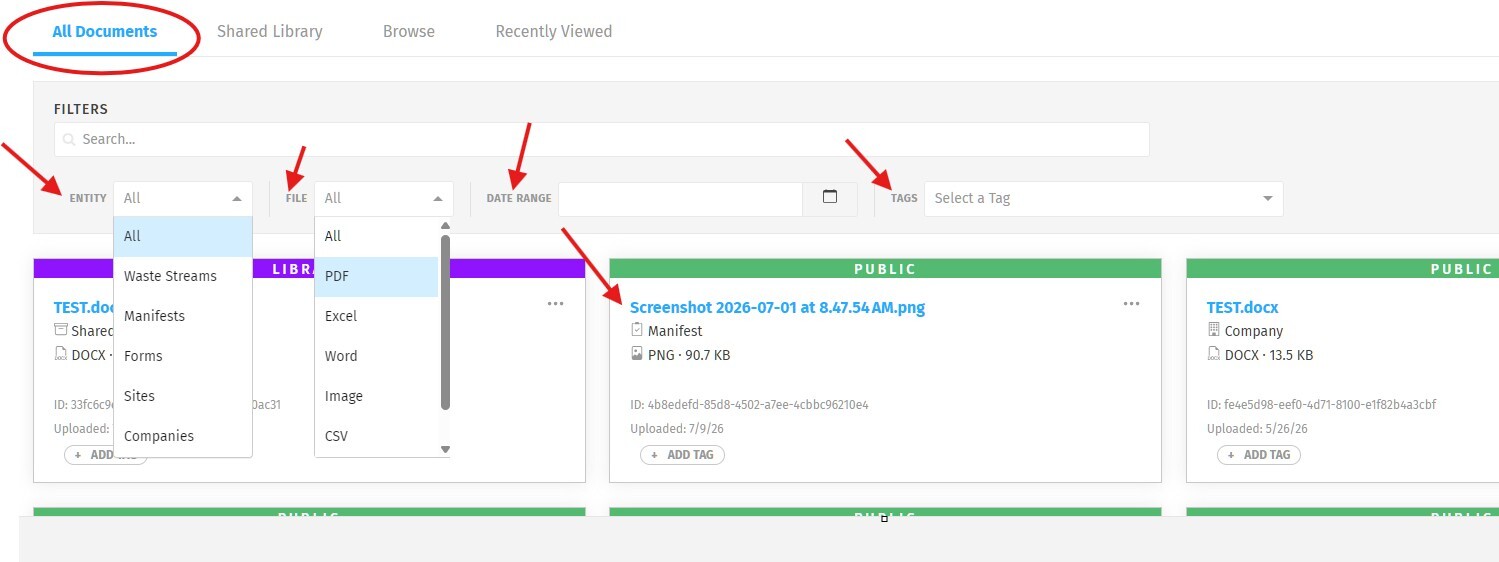
Use the filter bar at the top of the page to narrow results:
- Search - Filter by file name keyword
- Entity - Filter by entity type (Waste Stream, Manifest, Form, Site, Company)
- File - Filter by file extension (PDF, DOCX, PNG, etc.)
- Date Range - Filter by upload date
- Tags - Filter by any tag applied to a document
Document Actions
From the (...) menu on any document card, you can download the file, rename the document's display name, or navigate directly to the record it is attached to. You can also add or remove tags directly from the card.
Renaming a Document
- Locate the document you want to rename.
- Click the (...) menu on the document card.
- Select Rename.
- Enter a new display name and save.
Renaming only changes how the document appears in the Document Hub, it does not affect the original uploaded file name.
3. Browse Tab
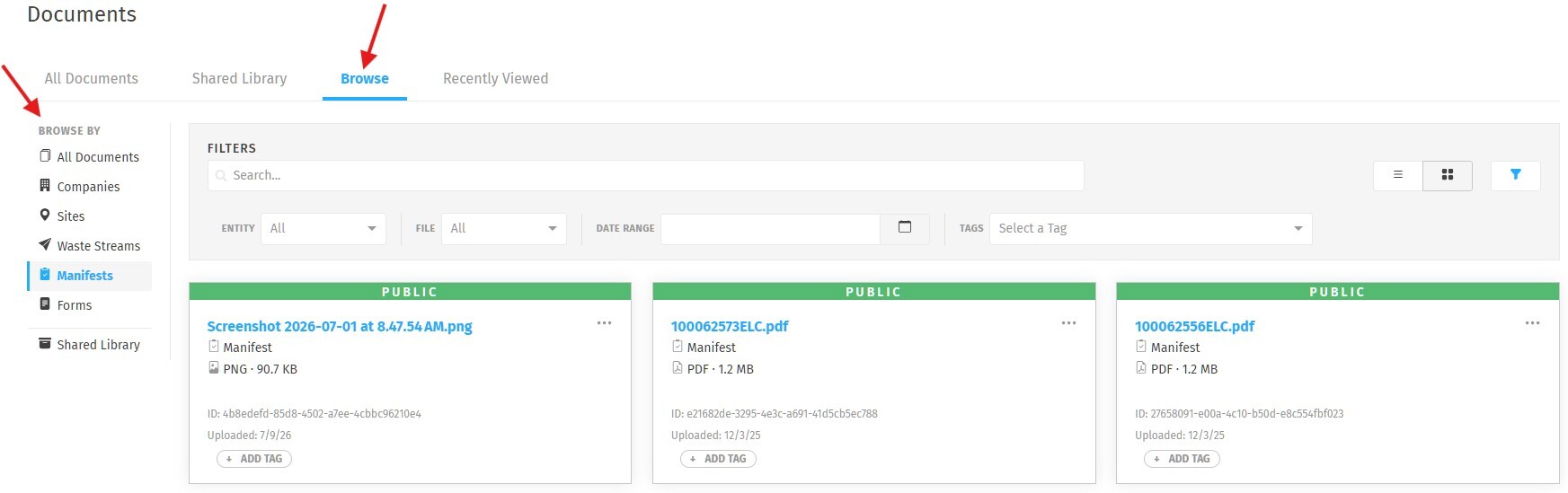
The Browse tab provides the same document card grid with an added folder tree panel on the left side. Use the tree to navigate documents by entity type:
- Companies
- Sites
- Waste Streams
- Manifests
- Forms
- Shared Library
Clicking a folder automatically filters the document grid to that entity type.
4. Shared Library Tab
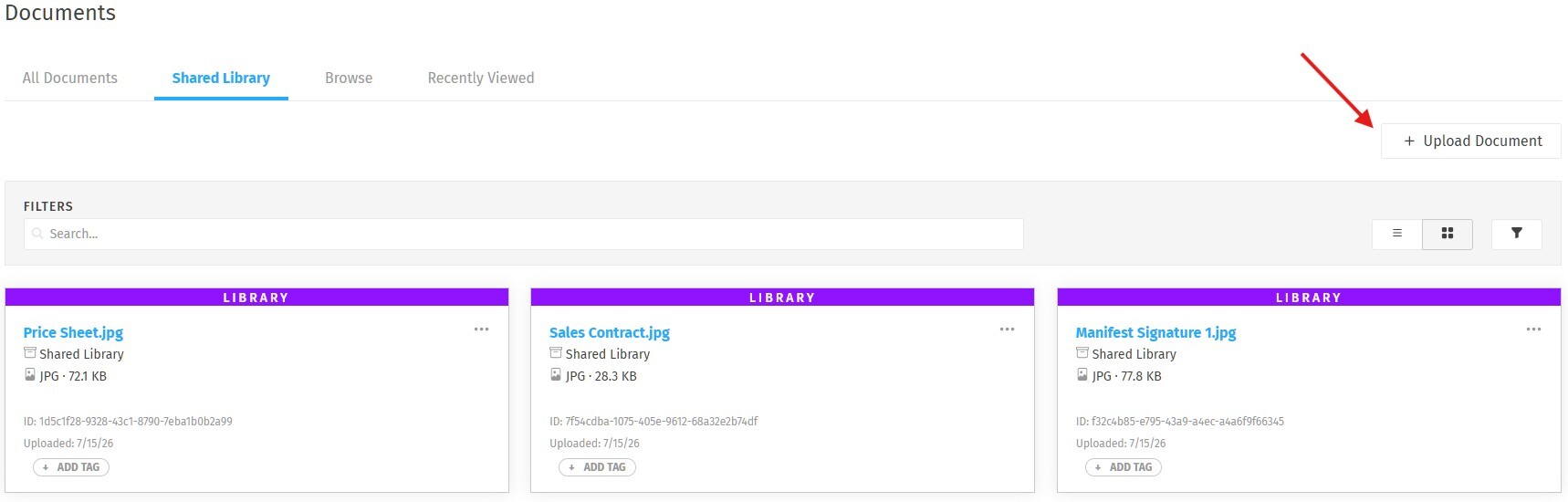
The Shared Library contains portal-level documents that are not attached to any specific record. This is a good place to store documents your whole team needs access to, such as regulatory guidelines, internal SOPs, or template forms.
Uploading to the Shared Library
- Navigate to the Shared Library tab.
- Click the Upload button.
- Select your file from the file picker.
- The file will upload and appear in the library.
Note: Upload and delete access in the Shared Library is controlled by user permissions. Not all users will see these controls.
Deleting a Shared Library Document
- Locate the document you want to remove.
- Click the (...) menu on the document card.
- Select Delete and confirm in the dialog.
5. Recently Viewed Tab
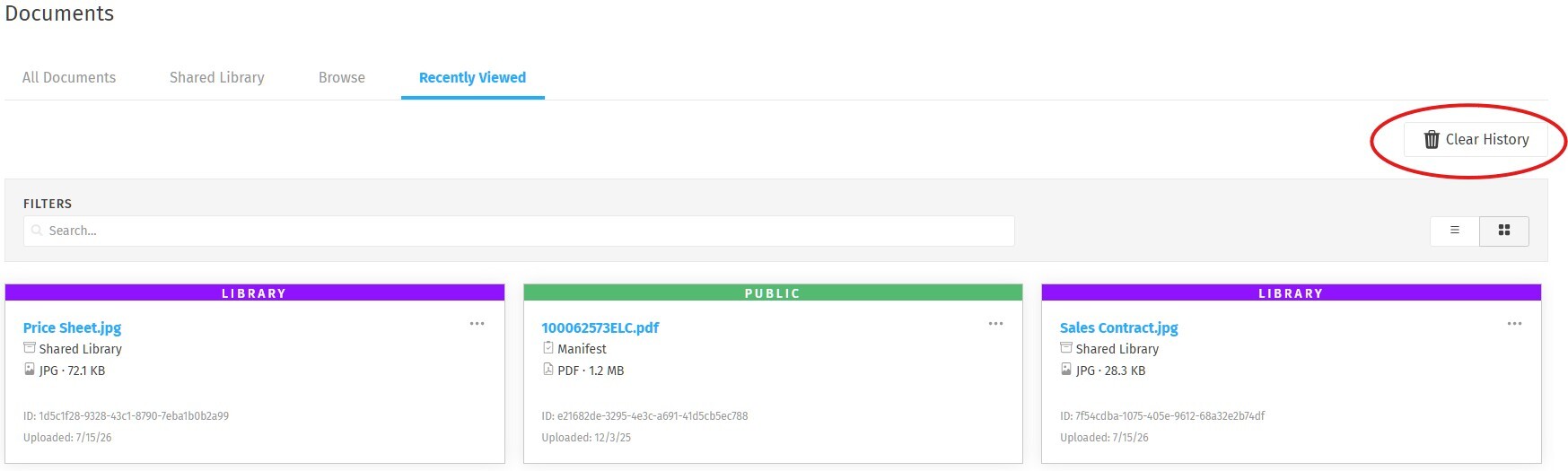
The Recently Viewed tab tracks the last 50 documents you have interacted with during your session. A document is recorded as viewed when you click Download or View Source on any document card.
You also have the ability to Clear your Recently Viewed History by clicking on the Clear History button in the top right corner.
7. Who Can Help?
If you need assistance with the Document Hub or document management within Wastebits, contact:
Wastebits Support
help@wastebits.com
(844) 724-0200